Getting Started Guide
Disclaimer: As the system is currently still in development, changes to the UI and how to use it may occur. If you have any questions, please ask on the Discord and we'll be happy to help!
How it Works
MScout is an innovative new scouting suite for use in the FIRST Robotics Competition.
It has three parts:
-
The "Client" - This is a web site that scouts can use to record match data in real time. It allows the easy recording of match data, with an action oriented and time based system that opens new doors for scoring, exporting data through QR codes that are processed offline by a master laptop. Visit the Client here.
-
The "Core" - The main software for offline import of data, through either a single QR code, a stream of QR codes, or a single stream of data that can be copied and pasted into the software. This can be downloaded from the GitHub page here.
-
The "Analytics" - This software imports data from the "Core" software and from The Blue Alliance to provide a unique data analysis tool. It also allows the export of data from the software into a .csv for analysis in other software suites. Download the Analytics software from GitHub here.
-
To support other teams and the FRC community overall, we at MScout would like you to publish your data in a timely fashion for everyone to use, in the spirit of Gracious Professionalism and Coopertition.
Client:
FRC-MScout-Client works best on an internet connected phone running any modern web browser.
When you first visit the site, you'll be greeted by a page that looks like this:

This enables you to add basic data about the match you are about to scout, including your team number, the robot you are scouting's team number, the match type, and the match number, as well as selecting the language you'd like to use.

*Note: Use the match number in the series during quarterfinals and semifinals. For example, semifinals 1 match 2, the match number is 2
Once you click start, you are met with an array of buttons. The guide below shows what each of the buttons and indicators mean and do.
.jpg)
Before the match starts, you can tap the 'Picked up Cargo/Hatch' buttons to record what they start the match in possession of.
To start the match, tap the timer in the top left corner to start counting down. Now, each event they complete will be recorded (along with the time stamp) in the bottom area. If you make an error, tap 'Undo' to remove the most recent action.
When the match ends (time = -10 seconds), or when you end it (swipe right to left, then tap 'end match'), you are greeted with a comments dialog, in which you can add any desired comments (750 character max). Then comes a QR code screen, where you have a couple options for transferring the data to the core software. Recommended practice is a QR stream, which displays multiple QR codes in a loop for a webcam to picture, but a single string of data is automatically copied to the clipboard for transfer through another method (message, slack, email, or over usb) or a single, large QR can be created, although it's large size may make scanning challenging on some systems.
At the time of writing (2/23/19), there is no way to save multiple matches in the client app before exporting to the computer, although the feature is in development.

By default, the system begins a "QR stream" - a series of QR codes that can be scanned.
The blue bar at the bottom allows setting the speed of the stream (faster means faster data transfer on high quality webcams, slower means more consistent data transfer)
When data transfer is complete, tap 'Back' to return to the initial setup screen to begin the next match.

You can also opt to use a single QR code, which can be toggled by tapping the 'Single QR' button at the bottom right corner.
Use this if the QR Stream isn't working or if you prefer.
Beware, the QR code can get prohibitively large (difficult to display and scan) for matches with lots of events recorded.
Core:
After downloading and extracting the core software, open frc-mscout-core.exe and a console window and the application will open. Leave both of these open while you import data from the scouts.
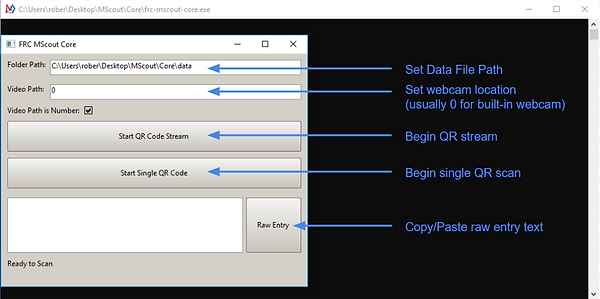
Clicking one of the QR code scanners will open up two webcam images, one full color and one in black and white. In the Core application, the "Ready to Scan" text will be updated with a completion status and a time-out timer. If no data is captured within 10 seconds of the application opening, the scanner will fail and will return to the home page.
If successful, a message will show this, and the path of the saved file will be displayed.
If you are having issues with the scanning, try increasing the phone brightness and making sure the QR code is centered on the phone's display.
Analytics:
Arguably the most important part of the MScout system, the Analytics software has more features than could be easily addressed in a quick guide, but hopefully most features are self-explanatory.
This guide will focus on the basics of loading data, simple match/team analysis, and exporting data to a .csv or .JSON file for use in other software (Excel, Tableau, etc). Other features are added regularly, so update often from GitHub.
Loading Match Data:
To open the Analytics software, run Electron.exe. Then go to the Load Data tab, set your data's credibility, and click 'Open Files' under "Load Data From Folder." Select your Data folder (named Data by default) in the location you saved to in the core software. This should include a number of folders, one for each team participating.

Loading Data from The Blue Alliance:
This is fairly self explanatory, and the author of this guide has an exam to study for, so this will be updated soon.